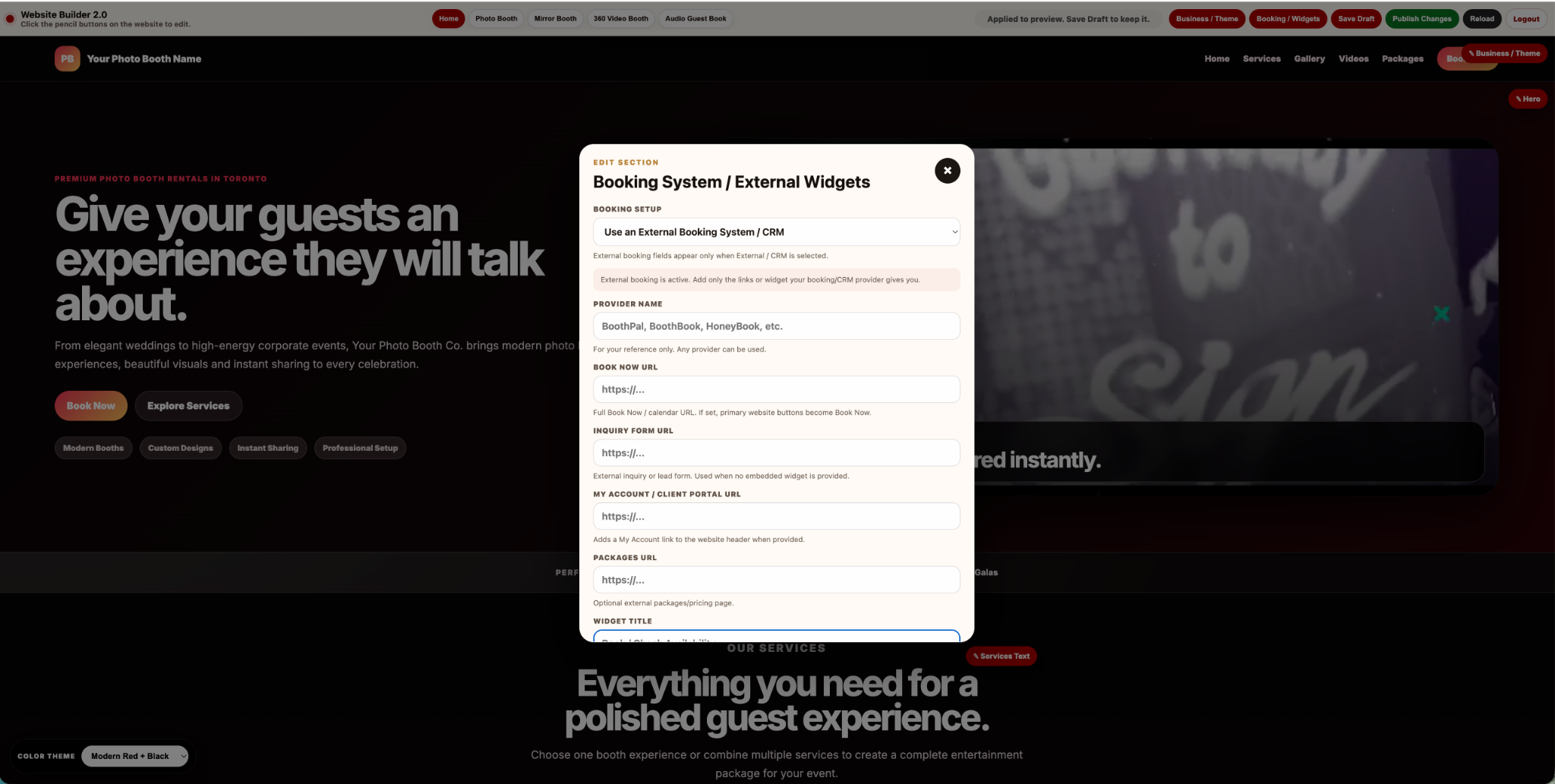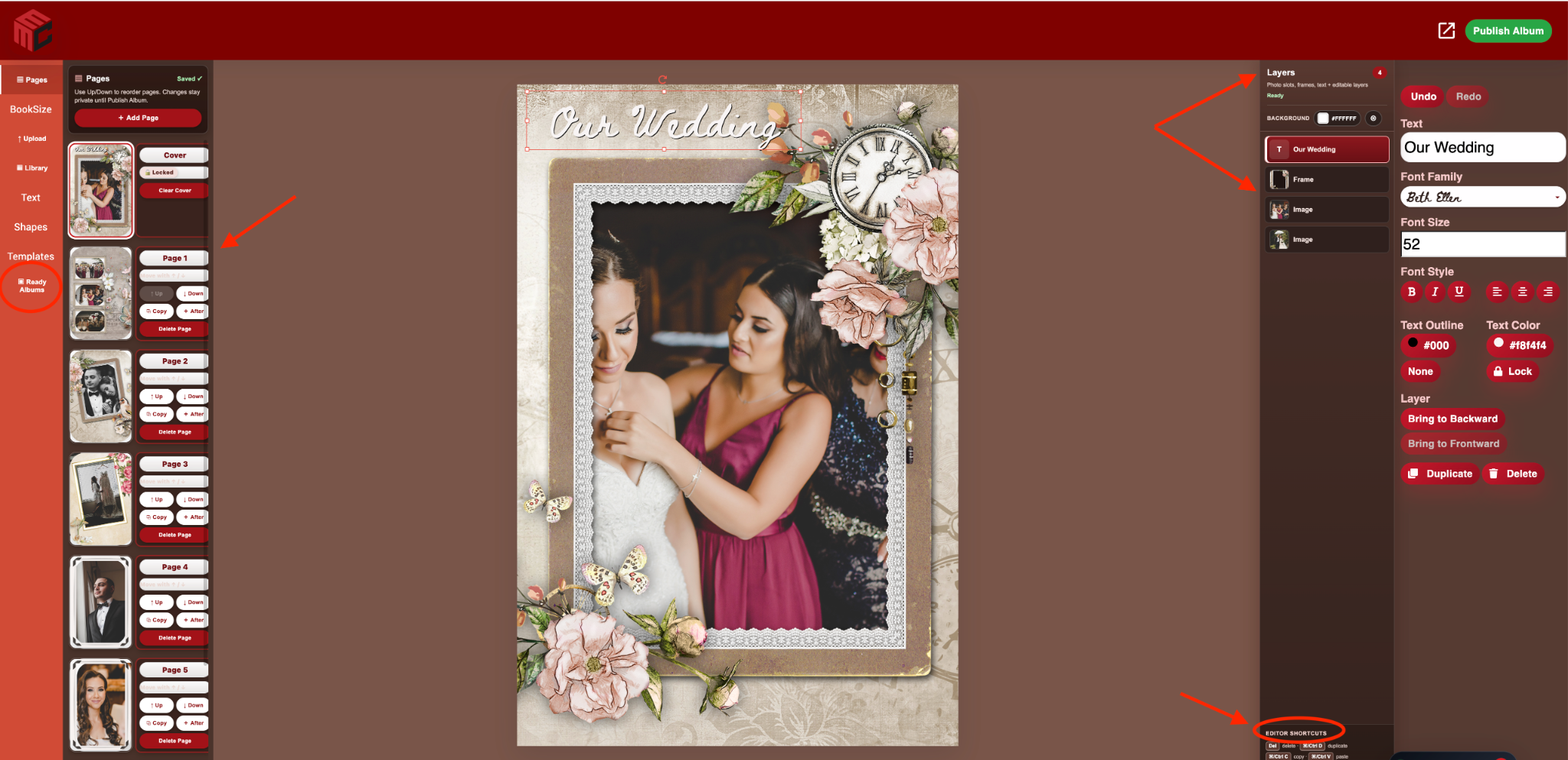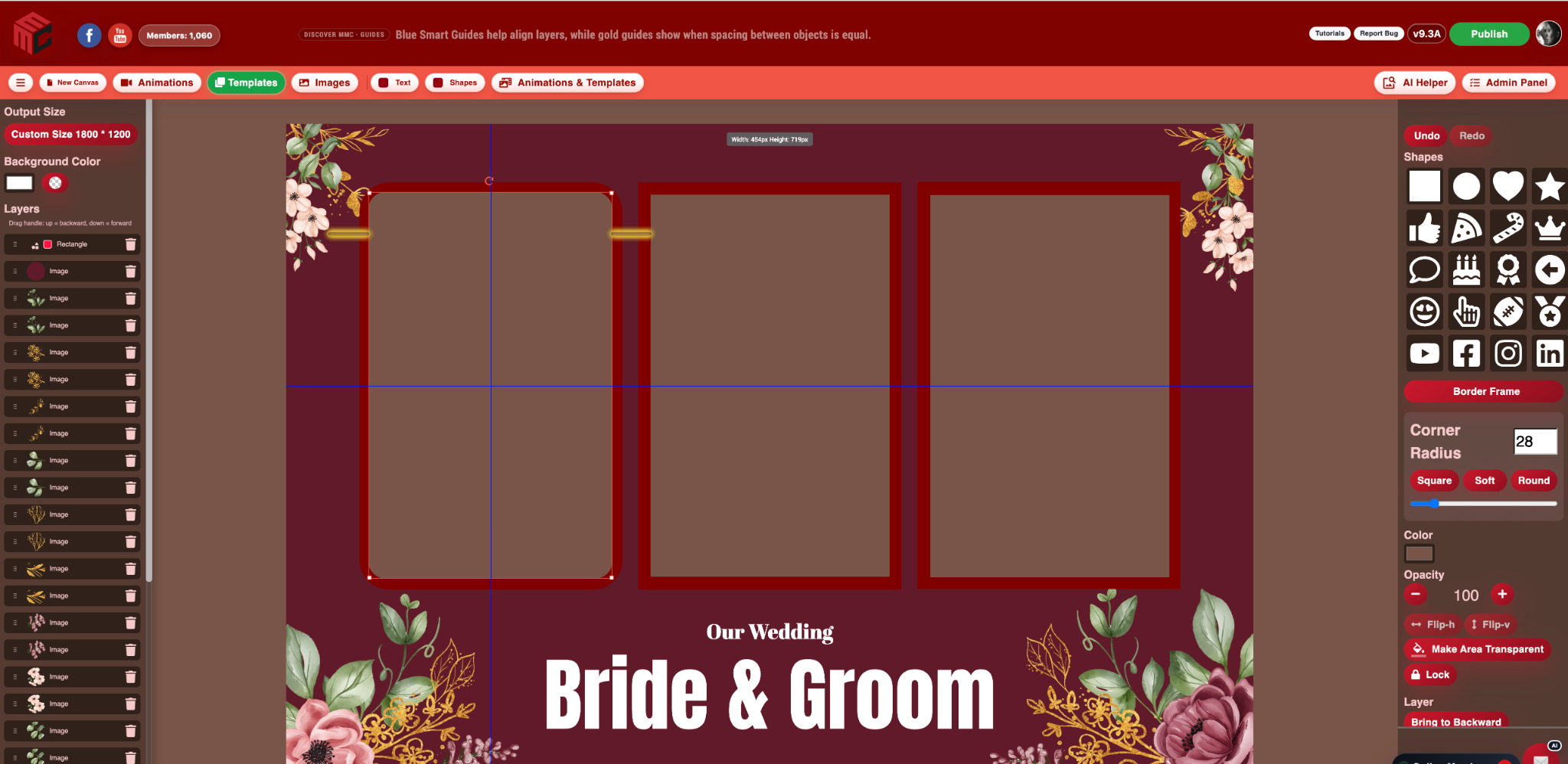
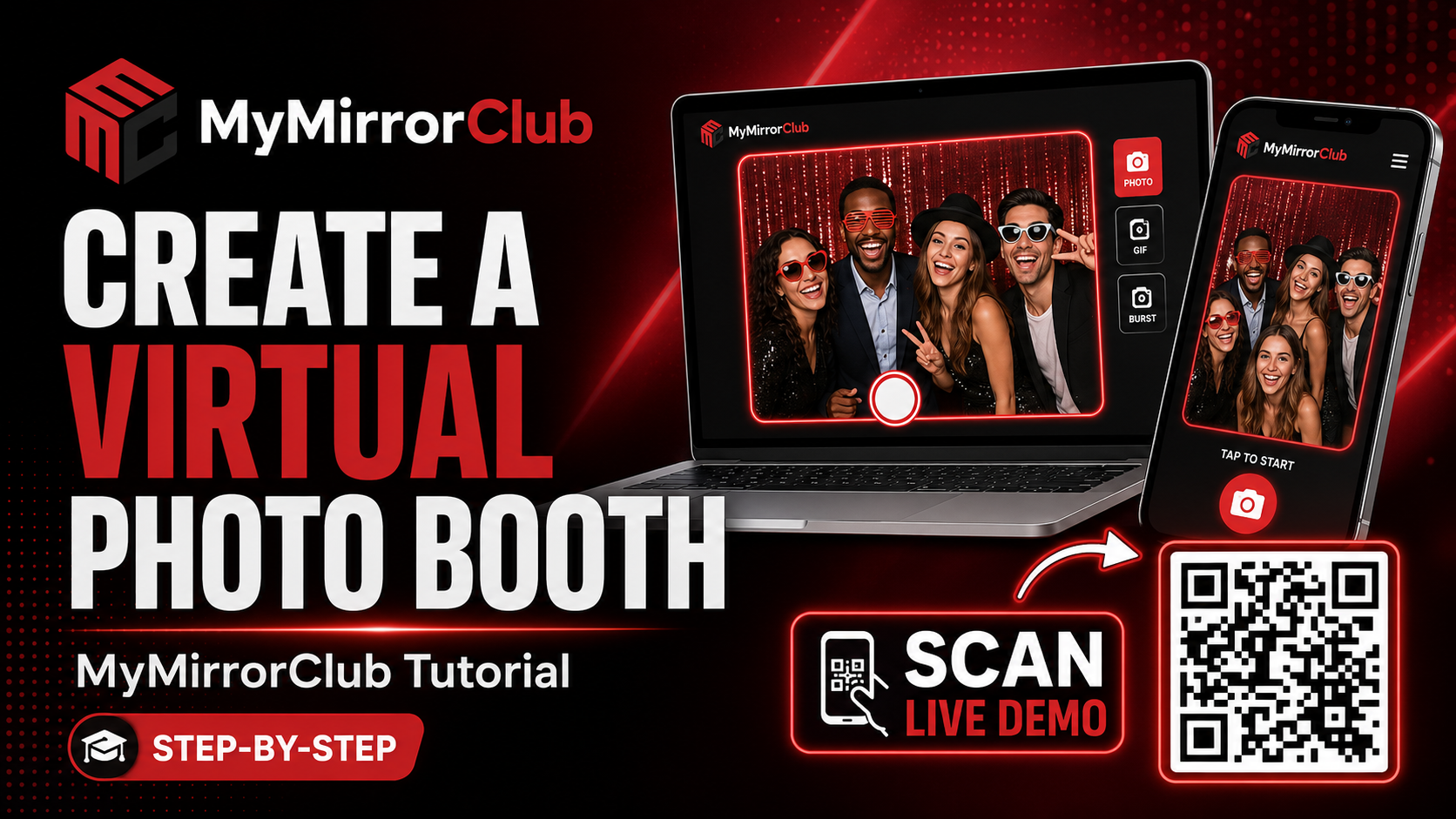
A MyMirrorClub Virtual Photo Booth gives guests a complete photo booth experience from their own phone, tablet or computer. Members can create a branded event, add one or more templates from their Workspace, share the automatically generated QR code and let guests create Still Photos, animated GIFs and five-second Boomerang videos.
Watch the complete Virtual Photo Booth setup tutorial
This updated MyMirrorClub tutorial walks members through creating and customizing a Virtual Photo Booth event using the current platform.
Try the company-owned live Virtual Photo Booth
This demonstration is operated by MyMirrorClub and can be used as a public example when showing clients how the guest experience works.
What is a MyMirrorClub Virtual Photo Booth?
The Virtual Photo Booth is an online event experience that combines the event title, member branding, uploaded design assets, selected photo booth template and guest capture workflow. Guests do not need to install an app. They open the event link or scan its QR code and use a compatible browser.
Three guest capture experiences
Members can prepare Virtual Photo Booth events for three different capture modes:
- Still Photo: one branded event image created from the guest’s photo and the selected template.
- Three-Photo GIF: three different guest photos combined into an animated GIF.
- Five-Second Boomerang: a short looping video-style capture that plays forward and backward.
Add templates from your Workspace before the event
A Virtual Photo Booth requires a compatible template from the member’s Workspace. Members can add as many templates as they want to the event, giving guests more than one design to choose from.
- Create or customize the design in the MyMirrorClub editor.
- Save the template in your Workspace.
- Add the template to the Virtual Photo Booth event.
- Test every template before sharing the public event link.
Automatic background removal and replacement
When background removal is enabled, a guest can upload a photo and MyMirrorClub can remove the original background before the final image is created. After removal, the guest can:
- Choose one of the backgrounds supplied with the Virtual Photo Booth.
- Upload a custom background from their device.
- Continue with the transparent subject placed over the selected replacement background.
This can be especially useful for themed events, corporate activations, destination-style scenes, holiday experiences and branded campaigns.
How the guest experience works
- The guest scans the automatically generated QR code or opens the shared event link.
- The branded Virtual Photo Booth loads on their phone, tablet or computer.
- The guest selects an available event template.
- The guest chooses the available Still Photo, three-photo GIF or five-second Boomerang experience.
- When enabled, the guest can remove the original photo background and choose a supplied or custom replacement.
- The finished result can be delivered by email.
- When slideshow permission is approved, eligible Still Photos can appear in the live event slideshow.
Automatic QR-code access
MyMirrorClub automatically generates a QR code for the Virtual Photo Booth event. Members can place it on:
- Welcome signs and entrance displays
- Table cards and printed inserts
- Invitations and reminder emails
- Digital displays and event websites
- Corporate booths, conference screens and brand-activation signage
- Thank-you cards and post-event follow-up
Email delivery and live slideshow sharing
Email delivery gives the guest a digital copy of the finished result. The optional slideshow creates a second live experience by displaying approved guest photos during the event. Members can open the slideshow page on a large screen, television or projector.
Branding and custom-domain presentation
The event can include the member logo, event title, background design, device presentation and selected templates. A custom domain can create an even more polished public-facing experience for a company demo, corporate campaign or special event.
Events that work well with a Virtual Photo Booth
- Corporate events and brand activations
- Trade shows, conferences and product launches
- Weddings, engagement parties and anniversaries
- Birthdays, graduations and school events
- Holiday parties and community celebrations
- Remote and hybrid events
Virtual Photo Booth setup checklist
- Create the event and confirm its title and branding.
- Add at least one compatible template from your Workspace.
- Add additional templates when you want to give guests more design choices.
- Choose the available capture mode or modes.
- Test background removal and both supplied and custom background replacement.
- Test the event on a phone and desktop browser.
- Test email delivery.
- Open and test the live slideshow.
- Scan the generated QR code before printing or displaying it.
Step-by-step tutorials are included
MyMirrorClub provides setup tutorials to help members create, customize, test and launch platform features. The updated Virtual Photo Booth tutorial above demonstrates the current member workflow and can be reopened through the Video Tutorial button inside the Virtual Photo Booth area.
Frequently asked questions
What can guests create?
Guests can create a Still Photo, an animated GIF made from three different photos, or a five-second Boomerang video.
Do guests need to install an app?
No. The experience opens through a normal web link in a compatible browser.
Does the event require a template?
Yes. Members must add at least one compatible template from their Workspace before using the Virtual Photo Booth. Multiple templates can be added to the same event.
Can the original photo background be removed?
Yes. When the option is enabled, the uploaded photo background can be removed before the guest chooses a supplied or custom replacement background.
Can guests upload their own replacement background?
Yes. After successful background removal, guests can select a supplied background or upload a compatible custom background from their device.
Can photos appear in a slideshow?
Yes. Eligible Still Photos can appear when the guest approves slideshow sharing and the event slideshow is enabled.
How do guests open the booth quickly?
The system automatically generates a QR code for the event.
Is there a setup tutorial?
Yes. Members can use the Video Tutorial button in the Virtual Photo Booth area or watch the updated tutorial directly on YouTube.
Explore connected MyMirrorClub event features
- Interactive Online Event Experiences
- Online Video Guest Book
- Online Audio Guest Book
- Flip Book Photo Album
- Online Photo Galleries
Create your next Virtual Photo Booth event
A Virtual Photo Booth can be offered as a standalone digital experience or combined with guest books, galleries, albums, live slideshows and other MyMirrorClub tools.
Open Your MyMirrorClub Workspace Watch the Setup Tutorial Open the Live Sample